This article was updated on 18 April 2016, spurred on by Joanna Penn’s great post on a similar theme here. (Joanna covers more aspects than I do and has some great practical examples using her own books, so definitely read both.)
My original article appeared in June 2014 after a visit to Apple. Some example screenshots and links below I have updated today, but the key principles remain. Feel free to add new comments if anything is unclear – and be sure also to see Joanna’s post above 🙂
While it’s common knowledge that most ebooks sales occur through Amazon’s Kindle store, significant numbers of Indie authors are choosing to spread their books across other platforms in order to reach new global readers for whom the Kindle isn’t (*gasp*) the reading device of choice.
iBooks, Kobo (now taking on Sony titles) and Nook Press, to name three obvious alternatives, all offer the opportunity to reach new audiences, and while sales on these platforms are modest for most authors compared with Kindle sales, savvy indie authors are taking a long-term view. Some upload direct, while others use distributors such as Smashwords. And as e-reading starts to take off in new global markets we are all keeping a close eye on the trends for which reading devices are being used and where.
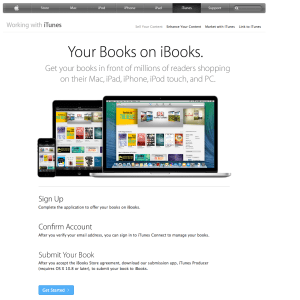
iTunes Connect – for distributing direct to the iBooks Store
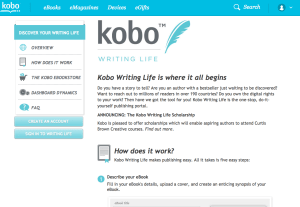
Self-publishing sign-up page at Kobo
Nook Press – for self-publishing direct to Nook
The good news is that many of these alternative platforms are keen to reach out to indie authors to help us market our books on a level playing field with traditionally published authors. At the same time, I’m sure these platforms recognise that indie authors (not unknown for our steely determination and being ahead of the curve!) are in an excellent position to help them spread the word about what they can offer us. This blog post is a case in point…
It’s with this in mind that I wanted to highlight some tips and tools in relation to the iBooks Store. If your book is already listed in the iBooks Store, what follows may help you with discovery and marketing if you’ve been too busy to read the small print. And if you aren’t listed, it may tempt you to give iBooks a go for the first time.
 Most of the information below is available on Apple’s website, and it isn’t necessarily all new – but as with all things it’s a matter of taking the time to find it out. Other snippets have come from conversations with people who know better than I do – I hope you’ll find the info of use!
First things first – what and where is the iBooks Store?
I was long confused about where and how the iBook Store operated when sitting at my desk, largely as it seemed to be a subset of iTunes that was always difficult to find when on my iMac. And when I did finally get there, I found that I couldn’t actually sample or read any books at my desk – instead, after buying a book or ordering a sample, I had to go to my iPad to pick it up.
The good news is that after October 2013 Apple made the iBooks App available on Apple desktops as well as iOS mobile devices – meaning you don’t have to fire up iTunes to browse for books.

iBooks App in my iMac dock
The iBooks app consists of :
- The iBook store where you can browse, search for and buy books
- Your iBooks library – your books and samples download into here ready for reading
iBooks works across all Apple platforms, which means you can browse, buy and read iBooks directly from your iMac or MacBook as well as from your iPad, iPod Touch or iPhone.
The iBooks app comes pre-installed on Apple desktop computers running on the latest operating systems and (as I understand it) is available as a free download / upgrade for anyone with older devices which didn’t come with it.
Unfortunately the iBooks app isn’t available for PCs or Android devices – you still need to shop for iBooks in iTunes and then send them to your nominated iOS device to read. This is a pity – however given that there are over 800 million iOS devices in 51 countries worldwide, that’s still a lot of potential customers with an easier route than previously to the iBook store!
iBooks categories and collections
As with all online stores, iBooks is broken out into a wide range of categories and sub-categories – both by genre and, alongside or within these, other collections such as ‘What’s hot’ ‘Editor’s picks’, ‘Summer reads’ ‘Newly released’ and so on…
Much of this content is curated rather than being algorithm driven – so clearly the Holy Grail for any author is to find ways to increase their chances of being featured on the front page or in editors’ picks for their category.
In iBooks there are two key places to be featured in any given section – these being in the top carousel, or listed in the title rows that appear further down as seen in the screenshots below.
iBooks Store Landing Page snapshot (updated April 2016)
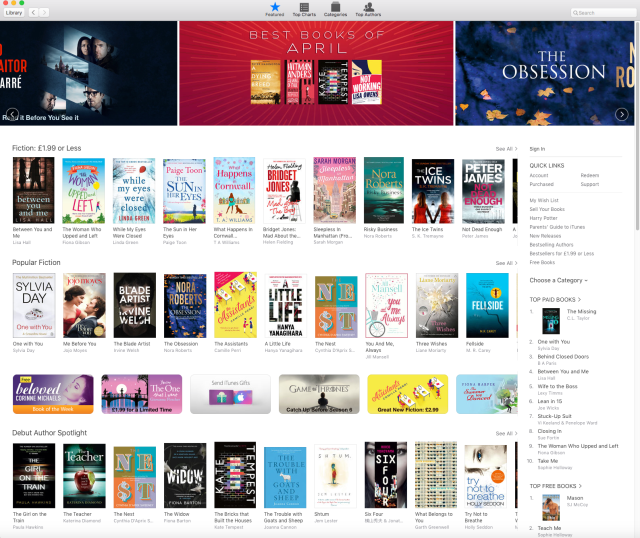
Children’s books landing page snapshot (updated April 2016)
 Good news! iBooks is welcoming Indie Authors
Back in 2014 when I first wrote this post Apple was actively increasing the number of indie titles it was including in these promo areas. I was told that around 80% of the Romance section was made up of Indie Author books at that time, of which which many featured in the front-page promotional spots. It seems that Apple is expanding indie presence in far more areas today and is still keen to support work with indie authors who have quality books to sell.
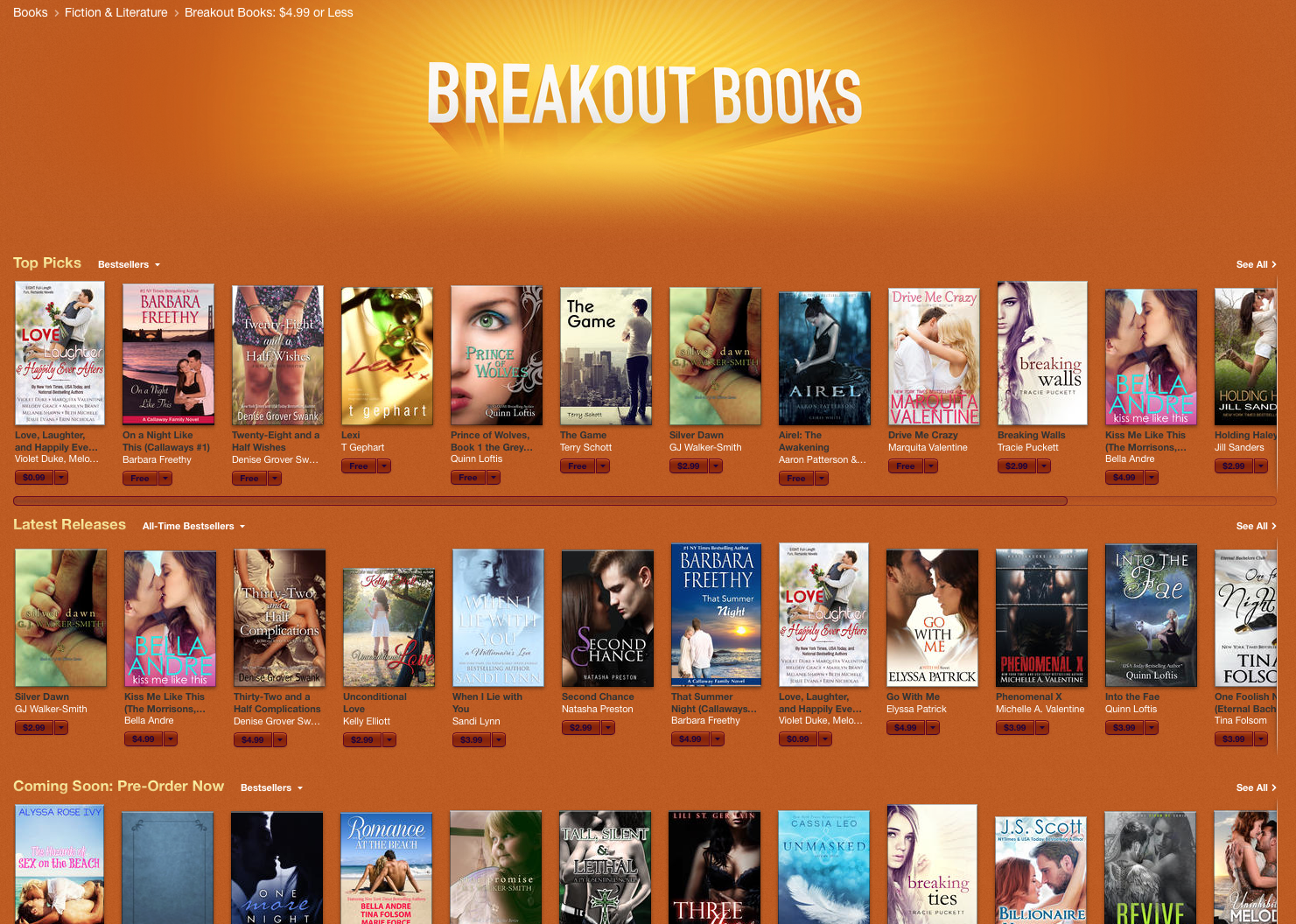
Back in 2014 iBooks also ran periodic promotions of Indie Authors in a section called ‘Breakout books’ – designed to help raise the profile of hand-picked indie titles. These promos ran at different times in different territory stores, but were another concrete sign of Apple’s desire to make indie authors more discoverable. [At the time of this update I’ve not had time to check whether this feature is still running…to be updated shortly.]
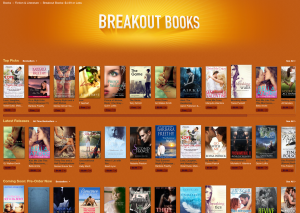
Breakout Books Snapshot in the UK store on 30 June 2014 – quick link access on right hand side
In short, the mood music is good – so how do we dance to its tune?
~~~
The rest of this post covers three interdependent themes:
- Tips to increase you chance of inclusion on iBooks’ front pages
- Making the most of iBooks’ marketing programs
- Using the iBooks link builders and widgets to market your book
1. Tips to increase your chance of inclusion on iBooks’ front pages
While there’s certainly no magic bullet for being selected for a feature slot or title row, it seems there are plenty of things you can do to avoid being passed over – and other things you can do to help yourself stand out from the crowd. Some of these are common sense and most savvy indie authors will be doing them already. Other may be less obvious. In the interests of completeness, I’m including them all below.
The Dos
- Do use a striking image at a high resolution for your book cover (300dpi / 1400 pixels wide on the smallest side). Try to use a cover that stands out rather than blends in with the competition in your category (something I’m sure we all aim to do!) – and if possible one that lends itself to be ‘taken apart’ and adapted to make striking promo banners when zooming in on key elements. These examples from the 2014 iBooks store stood out to me at the time, and still work now:
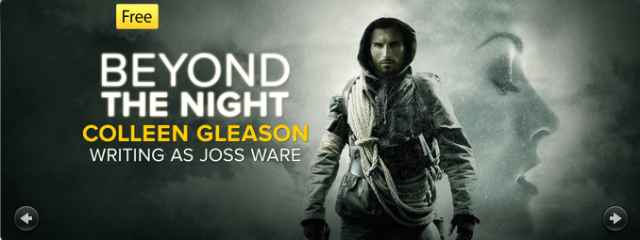
Featured book on iBooks on 30 June 2014 – a distinctive image with striking close-up
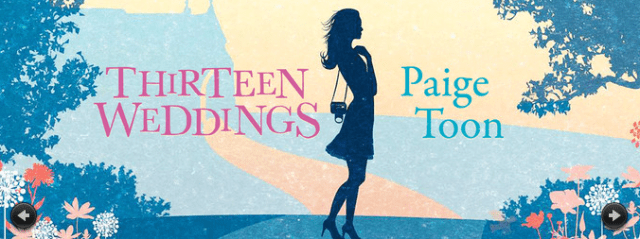
Featured book in iBookstore on 30 June 2014 – zooming in on cover image element works well
- Do complete metadata fully and accurately – it will help Apple editorial teams find your book if searching for genres to feature.
- Do pick the right categories for you book – picking an inappropriate category could harm your chances of selection for a featured slot (applies generally, but for Romance writers see more on this below under ‘Don’ts)
- Do check your formatting – Apple’s editors read your content and they clearly won’t be featuring a sloppily presented book! Savvy indie authors will be doing this already, naturally.
- Do check and fix any broken links – as above.
- Do promote and link to your book via your blog: if Apple see that you’re sending customers to their store and you already fulfil the criteria above, it stands to reason that you’ll earn yourself extra brownie points – see below for some of tools, tips and coding they provide to help you with this.
The Don’ts
- Don’t put fully naked images on your book cover if you want to be featured – these will never appear on landing pages due to issues with children potentially stumbling across them.
- Don’t put a contemporary romance novel in the erotica category just because it has a bit of love and sex. I’ve heard that erotica won’t ever be featured on the front page so using it to try to increase your sales will probably have the opposite effect in terms of discoverability.
Other basics to avoid…these may result in a file rejection at upload
- Don’t put any links to competitor sites in your book (a link to your blog which has links to competitor sites as well as to the iBook store is apparently fine).
- Don’t put the price on the jacket or in the book.
- Don’t using 3-D images for your book cover.
2. Making the most of iBooks marketing programs
Using pre-orders to promote your iBooks title
One area where Apple is ahead of the game on Amazon is allowing e-book pre-orders up to a year ahead of the publication date. Apple actively merchandises pre-orders on its front pages – and all pre-orders get picked up and ranked in the pre-order charts for their genre.
You don’t have to have a final ePub or a book jacket to set up a pre-order page – you can use a placeholder jacket if you wish.

A snapshot of pre-order titles on 30 June 2014 – note that you don’t have to have a jacket
Once the pre-order page is set up you can then create PR opportunities for milestones in the lead-up to publication such as:
- counting down to and announcing your ‘Jacket reveal’
- doing chapter reveals on your blog or FB page with links to the pre-order page
- counting down in ‘weeks’ ‘days’ and ‘hours’ to your launch
- providing a ‘sneak peek’ or exclusive pre-order , which will increase your chances of being featured (more on this below)
- actual launch date promos
The great thing about this system is that each PR opportunity potentially leads to more pre-orders, which in turn affect pre-order chart ranking. And when the book finally launches you benefit from the pre-orders sales themselves as orders complete, increasing the chances of a sales spike and your book appearing in the bestsellers’ lists.
Offering ‘Sneak peek’ or ‘early release’ exclusives
If you look in the iBooks Store, you’ll see some authors offering exclusives ‘sneak peeks’ at excerpts from their book ahead of the release date. Common sense suggests that if you offer this kind of exclusive during the pre-order period – which involves uploading a sample that customers can preview – you’ll increase the chances of your pre-order title being featured.
The same goes for offering early release exclusives – whereby you opt to publish your book with iBooks ahead of other retailers.
Apparently some indie authors have achieved 80% of their sales via iBooks after giving early exclusivity to Apple. While this may be the exception (and possibly only the case in certain categories) it’s worth considering!
3. Using the iBooks link builders and widgets to market your book
Apple offers some pretty cool tools to help you market books from your site. These come in the form of widgets, which mean that they won’t work if you have a free WordPress blog. However there is a simple workaround which is to use the tool to build the button you want and then take a copy/screenshot of it. You can then upload this to WordPress as an image and stick the custom URL behind it 🙂 I’ve demonstrated this below.
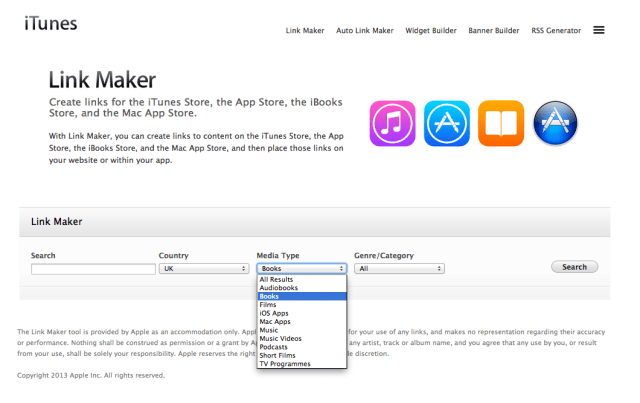
The link maker works for all products – not just books. Read below for link behaviour once clicked.
The tools are:
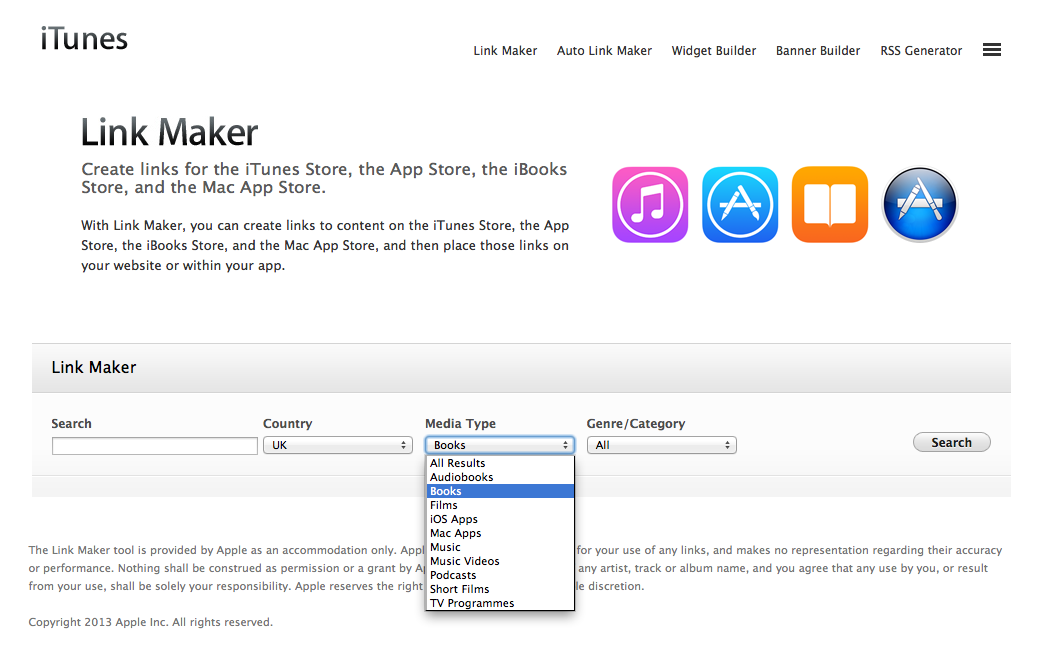
Link Maker
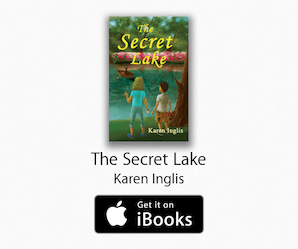
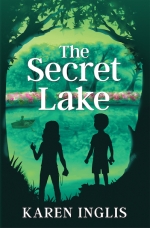
- This provides links to your iBookstore product page using the apple badges – available in a variety of sizes. See example below, using my time travel mystery for ages 8-11 ‘The Secret Lake’.
- Any customer who is on a mobile iOS device (iPad, iPhone or iPod touch) when they click on this links, will be taken directly to the product page for your book in their country’s iBook Store (even though you are asked to select one country code for that link at the outset – see screenshot above).
- Less satisfactorily, if the customer is on their desktop (Mac or PC) they will be taken to an iTunes preview page showing the price in the currency selected inside the widget. Once the customer clicks the ‘view in iBooks’ button they are taken to their own territory’s iBooks Store page, or iTunes page if they don’t have access to the iBooks App. Being presented with the wrong territory’s product page is a confusing customer journey that I hope Apple will fix at some stage.
- If you host your own site or use WordPress.org you will be able to insert the widget code directly and the image will appear in your chosen format from those available, complete with the embedded link. As I have the free WordPress site I can’t do this (external widgets aren’t allowed) so I’ve used a workaround by taking a screenshot of the badge I created with the link maker, then adding the ‘direct link’ URL (found just below the image when you use the link maker) separately.
Banner Builder
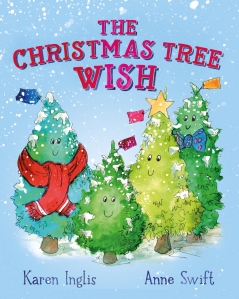
- Allows you to create banners in different sizes for use on your site – in this example I’ve used my enhanced eBook, Ferdinand Fox’s Big Sleep. It comes with word highlighting and my own narration – wonderful for ages 3-6 🙂 Again I took a screenshot of the banner for my workaround and then added the direct link URL.

Auto link maker
- This provides affiliate links to your product page. I’ve not read up on this in detail but you apparently earn 7% commission in the affiliate program on anything the users buys in the Apple Store (anywhere – not just the iBooks Store) for 24 hours after you first sent them there – no matter how many separate contacts they make and the tracking is apparently very transparent.
- Widget Builder – I’ve not yet played with this properly but it includes the facility to link to a chosen book, music track or playlist in iTunes – which means you could perhaps associate your book with a given sound track. Sounds great fun 🙂
- RSS Generator – allows you to create custom feeds to ‘Top 10’ lists of Apple Products by type (books, audiobooks, music, apps, podcasts etc) on your site – if you’re in the affiliate program this will again earn you commission.
Author page links
Your Author page in iBooks will list all of your titles – as well as any pre-order titles. To find your author page URL, right click on your author name on your product page and copy it from there. Again you can use this for promotions and it will send users to your author page in their own store provided they are on a mobile iOS device.
Linking books in a series
If you have books in a series, Apple allows you to link them so that the landing page for the book will show all other books in that series. You set this up in iTunes producer if you upload directly to iBooks. If your books are submitted via a third party they will know how to do this and/or you can contact apple support and they will email you instructions. Once you link the books in one store, this will translate into all the other stores globally.
Final marketing tip…
One general common sense tip within your marketing mix if you have books in different stores is to include targetting social media promo messages to different device users rather than using a one-size-fits all approach. For example when tweeting think about creating separate tweets aimed at users of Kindle, iBooks, Kobo, Nook etc by using hashtags to catch those audiences on twitter and link them direct to your book’s product page in the store in question.
This article was updated on 18 April 2016
Please note that I updated this article with new links in April 2016 – the book I was previously linking to no longer was available in the iBooks Store and I have instead swapped in my own books.
If there’s anything I’ve missed, not got quite right, or that you’d like to add to help others thinking of self-publishing to the iBooks Store please do still leave a comment.
Karen (updated 18 April 2016)




















 Self-publishing adventures